
Set a User Access Pre-filter
Overview
Restrict the devices, Ports, Port Containers, and trigger buttons that selected users can use, without changing their Tag assignments.
Prerequisites
-
Use an account with the User admin role.
-
Open the Users list and identify the accounts to change.
Tag assignments grant access to Ports. The access limit then uses the selected Tags to restrict which devices, Ports, Port Containers, and trigger buttons the user can use.
Set the Pre-filter
-
On the Users tab, select one or more users or Hardware Panel profiles. For groups, see Set a Microsoft Entra ID User Group Access Pre-filter.
-
Select the Limit Access icon from the toolbar.
-
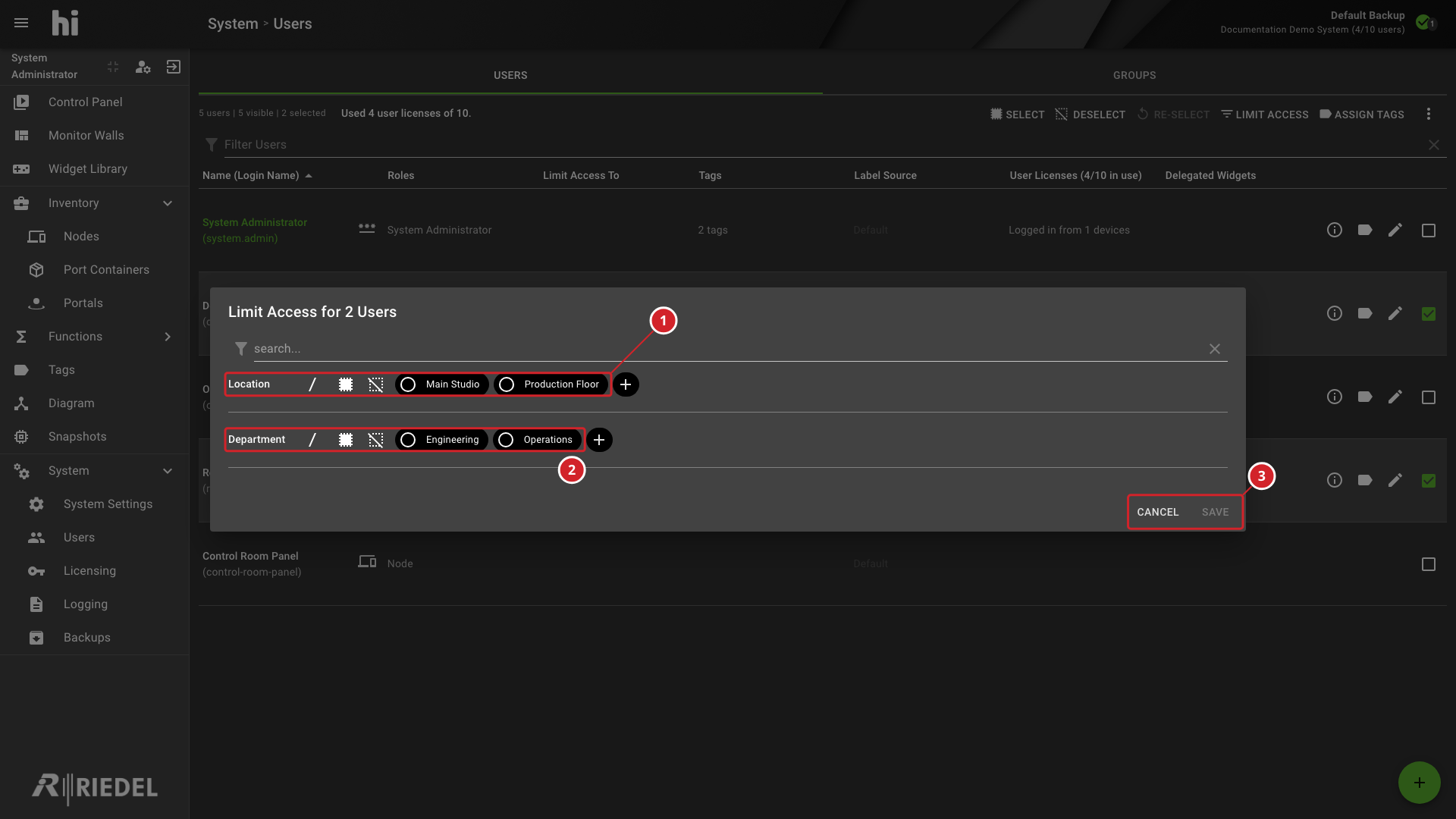
In the Limit Access for dialog, select the Tags that define the limit.
-
For each category, select AND or OR to set the relation between Tags. Categories default to OR.
-
Select Save.
The access limit is displayed in the Limit Access To column of the user list, showing Tag chips grouped by category with the logical operator between them.
-
Configure the Location Tag filter for the selected users.
-
Configure the Department Tag filter and its logical operator.
-
Select Save to apply the pre-filter or Cancel to discard it.
Verify the Result
Open Account Information for the affected user and confirm the effective settings. Sign in with a test account to verify access changes.
Next Steps
Use the Control Panel to check the visible Tag filters.