
Delegate a Preset to Hardware Panels
Overview
Make a Control Panel Preset available on selected Hardware Panels.
Prerequisites
-
Use an account with Control Panel access and Tag access to the required Sources and Destinations.
-
Open Control Panel and select the required Preset.
-
Use an account with both the Preset admin and User admin roles to access Delegate to panels and its selection dialog.
-
Register the Hardware Panels in hi first. The dialog lists only Hardware Panels that are registered in the installation.
-
For a Dynamic Preset, select at least one Tag on both the Source side and the Destination side. Alternatively, use pinned-Ports-only mode on each side. A Single Destination Preset with a selected Destination satisfies the Destination side. Delegate to panels is unavailable until the Preset meets this condition. A Static Preset has no such condition.
Delegate the Preset
-
Select the Preset.
-
Open the Preset menu and select Delegate to panels.
-
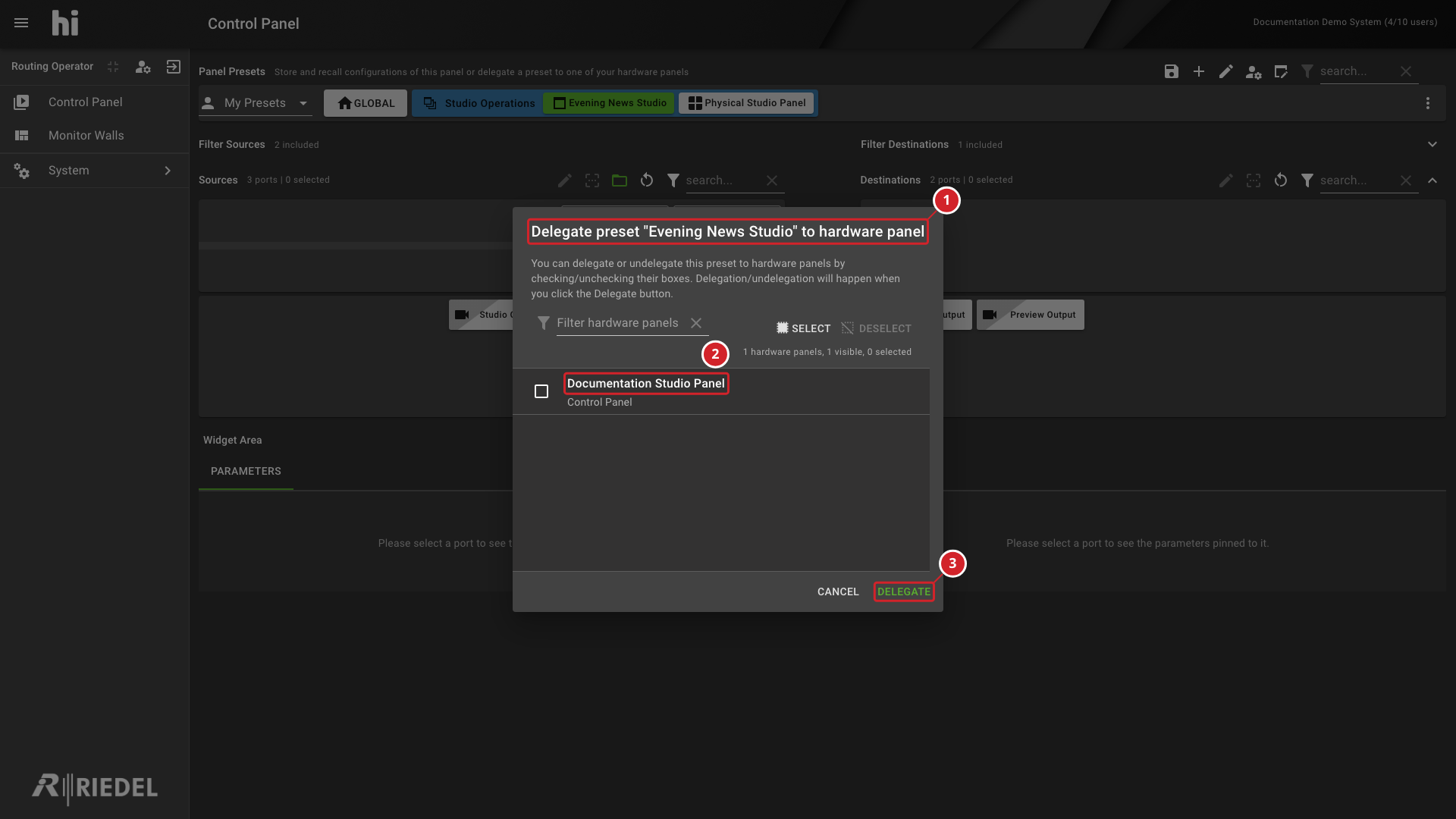
In the dialog titled Delegate preset "<Preset name>" to hardware panel, select the checkbox of each Hardware Panel that must carry this Preset. Use the filter field to find a panel.
-
Select Delegate to apply the selection.
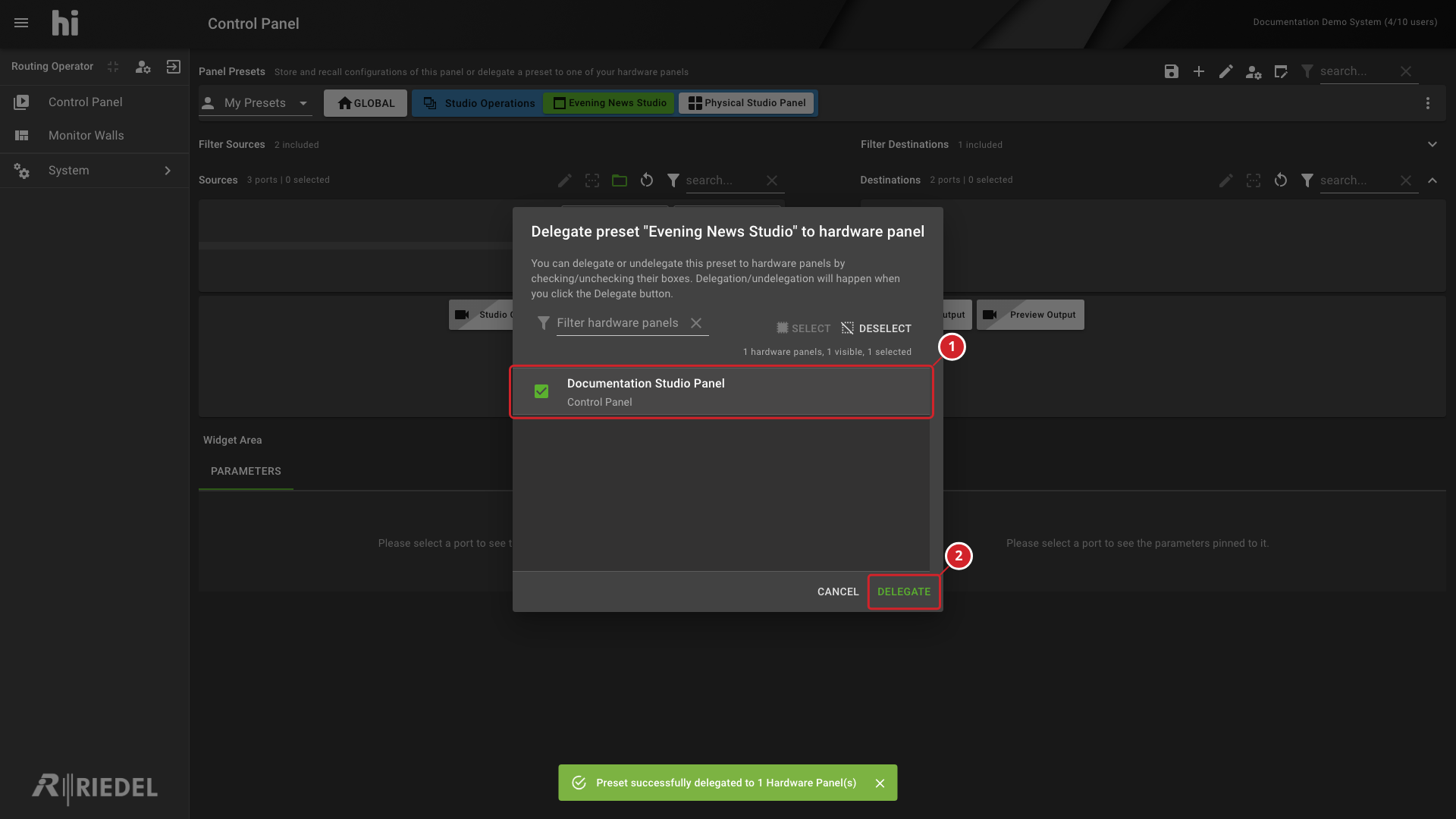
Checked Hardware Panels already carry the Preset. To remove the Preset from a Hardware Panel, clear its checkbox and select Delegate. The change applies when you select Delegate.
Caution
Updating the Preset automatically updates every delegated Hardware Panel.
Select Hardware Panels
-
The dialog identifies Evening News Studio as the Preset to delegate.
-
Documentation Studio Panel is available in the panel list.
-
Select Delegate after selecting the required panels.
Review the Panel Selection
-
Documentation Studio Panel is checked in the delegation dialog.
-
Delegate applies changes to the checked panels.
Verify the Result
Confirm the same Sources and Destinations on the target Hardware Panels.
Next Steps
Return to the Use the Control Panel task list.