
Destination Lock States Reference
Overview
Understand Destination lock states and the permission required to override locks.
Authorization
Crosspoint authorization determines the Sources and Destinations a user can access through the Control Panel.
Only authorized Ports appear in the Port list. See Access Control for the role and Tag model.
Lock States
Lock a Destination to prevent routing changes. When it is locked, Take is disabled and the connection toolbar shows a lock icon.
The lock control displays one of these states:
|
State |
Description |
|---|---|
|
Lock |
The Destination is not locked. The current user can lock it. |
|
Unlock |
The Destination is locked by this user, or by a user or panel with the same authority. The current user can unlock it. |
|
Locked (no access to unlock) |
The Destination is locked by another user or Hardware Panel. The current user cannot unlock it. |
|
No lock control |
Locking is disabled on this Preset, or a non-lockable item such as a trigger button is selected. On an inactive Multiviewer Head layout, the tooltip states that the control is disabled until you switch to the active layout. |
When the control shows Locked (no access to unlock), the name of the locking entity (user or Hardware Panel) is displayed below the lock icon. Hardware Panels can also create locks. Port Containers can be locked like Ports.
Information
For a Multiviewer Head, the lock control is unavailable while the selected layout is not active. Return to its active layout before using the lock control. Do not apply a different layout merely to enable locking. See Manage Monitor Walls for layout selection.
Unlock admin
Users with the Unlock admin role can unlock any lock on their authorized Destinations, regardless of who originally created the lock. Assign this role through Manage Users for operators who need override capability.
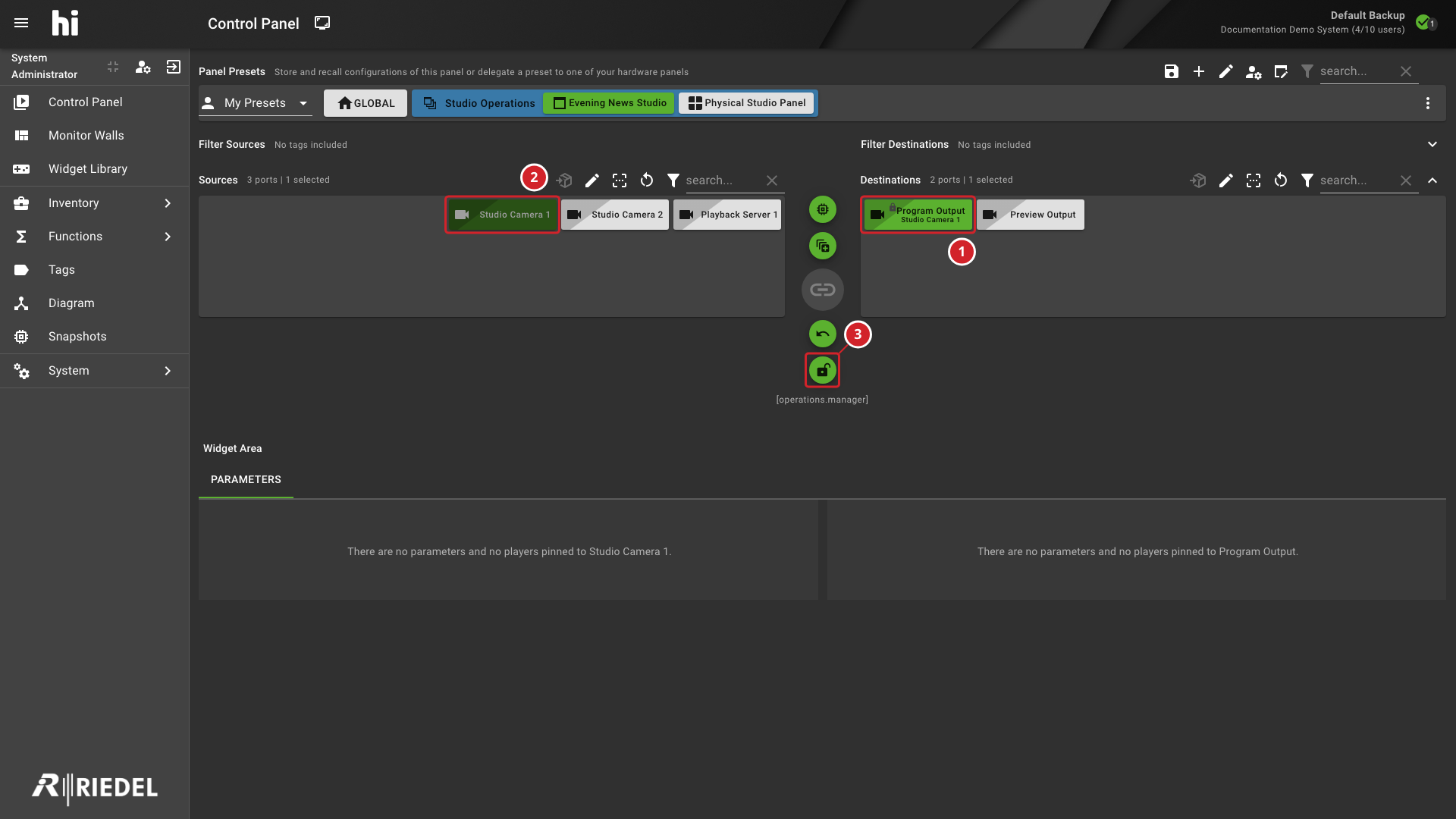
-
Program Output is the selected Destination.
-
Studio Camera 1 is the selected Source.
-
The lock control shows the selected Destination’s lock state.
Related Procedures
Return to Use the Control Panel to select a task.