
Simulate a Hardware Panel
Overview
Use the Hardware Panel Simulator to verify a delegated Preset and the resulting button layout in the browser. The simulator represents supported Riedel Hardware Panels without requiring the physical panel.
Prerequisites
-
Use an account that can open the Control Panel and the required Preset.
-
Delegate the Preset to a supported Riedel Hardware Panel.
-
Assign the required Hardware Panel SKU when the panel configuration does not already contain one.
Open the Simulator
-
Open the Control Panel.
-
Select the Preset bar of the target Hardware Panel.
-
Select SIMULATE. The button appears for a physical Riedel Hardware Panel without child panels when the license enables the Hardware Panel Simulator.
-
Select the appropriate SKU if the SKU selector appears.
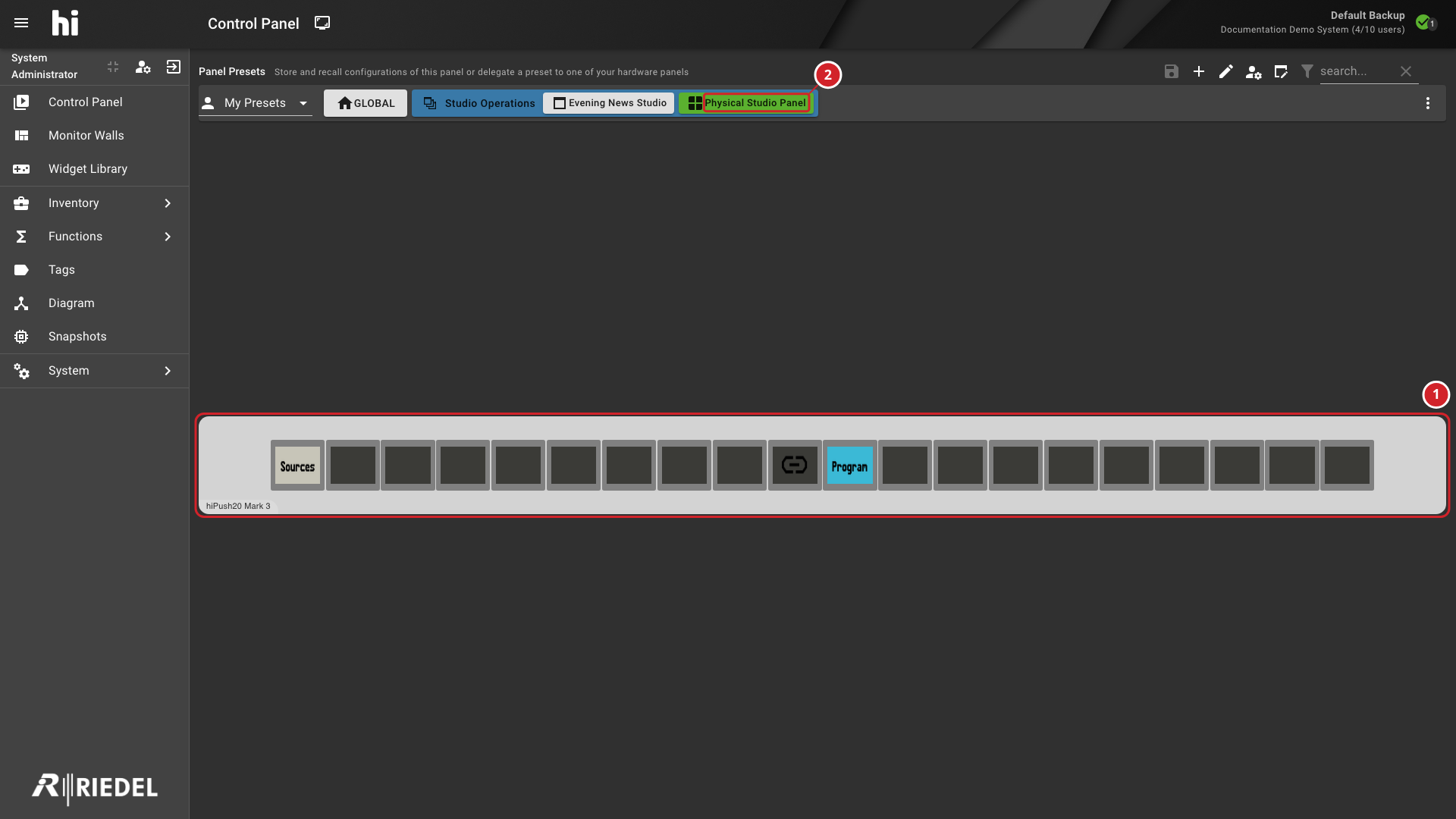
The simulator opens and renders the Preset on the selected panel layout.
-
The Hardware Panel Simulator shows the selected panel layout and its button assignments.
-
Physical Studio Panel is the selected Preset of the simulated Hardware Panel.
Constraints
-
The simulator does not support third-party Hardware Panels.
-
The simulator cannot directly represent Hardware Panels with child devices.
-
The simulator requires a license that enables the Hardware Panel Simulator option.
-
The simulator is not available while the Control Panel shows a Static Preset.
Verify the Result
Confirm that the simulator shows the expected Preset, button assignments, Labels, and available actions for the selected SKU.
Select STOP SIMULATION to close the simulator.
Next Steps
Use Edit a Static Preset when the panel requires fixed Port assignments.