
Delete Multiple Presets
Overview
Delete several Presets in one operation from the Preset menu. To delete only the active Preset, select Delete current preset from the same menu.
Prerequisites
-
Open Control Panel.
-
Use an account that owns or can edit the Presets to delete. The dialog lists only the Presets that the current user can edit.
Caution
Deleting a Preset removes it from all software panels and Hardware Panels. Confirm that no operator or Hardware Panel still needs the Preset before you delete it.
Delete the Presets
-
Open the three-dot Preset menu.
-
Select Delete multiple presets.
-
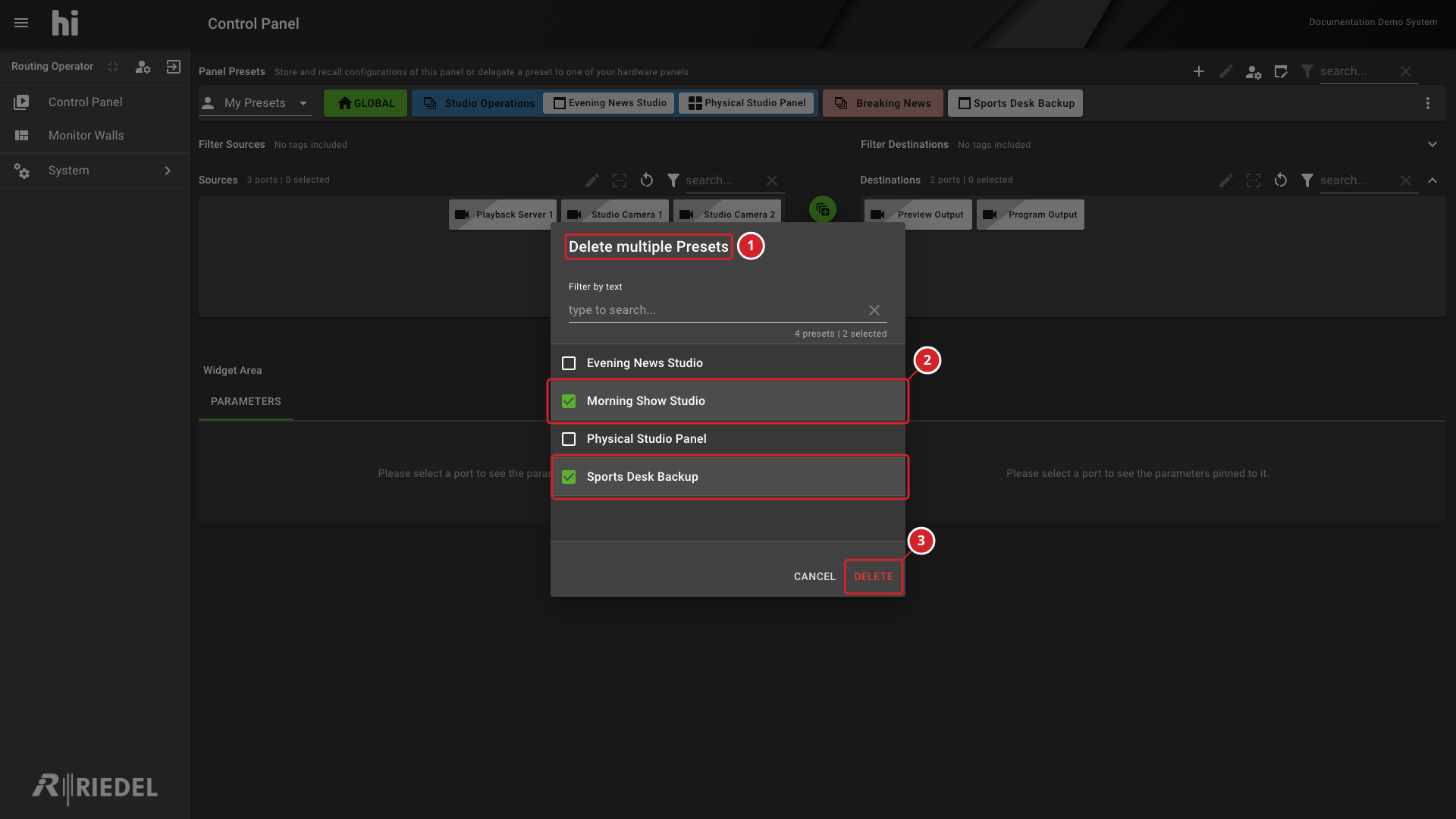
In Delete multiple Presets, select the checkbox of each Preset to delete.
-
Select Delete.
-
The Delete multiple Presets title.
-
The checked Presets are the ones to delete. Unchecked Presets stay.
-
Delete deletes the checked Presets.
Delete multiple presets is unavailable when you have no editable Presets. When the active Preset is among the deleted Presets, the Control Panel resets its current settings to the defaults.
Verify the Result
Confirm that the deleted Presets no longer appear on the Preset bar.
Next Steps
Use Create a Control Panel Preset to create a replacement. See Preset settings for the other Preset menu actions.