
Organize Presets into Groups
Overview
Group related Presets on the Preset bar.
Prerequisites
-
Use an account with Control Panel access and Tag access to the required Sources and Destinations.
-
Open Control Panel and select the required Preset.
-
Use the Preset admin role for the full Control Panel's Edit Preset Groups action.
Create a Preset Group
-
Open the three-dot Preset menu.
-
Select Edit Preset Groups, then select + in the group editor.
-
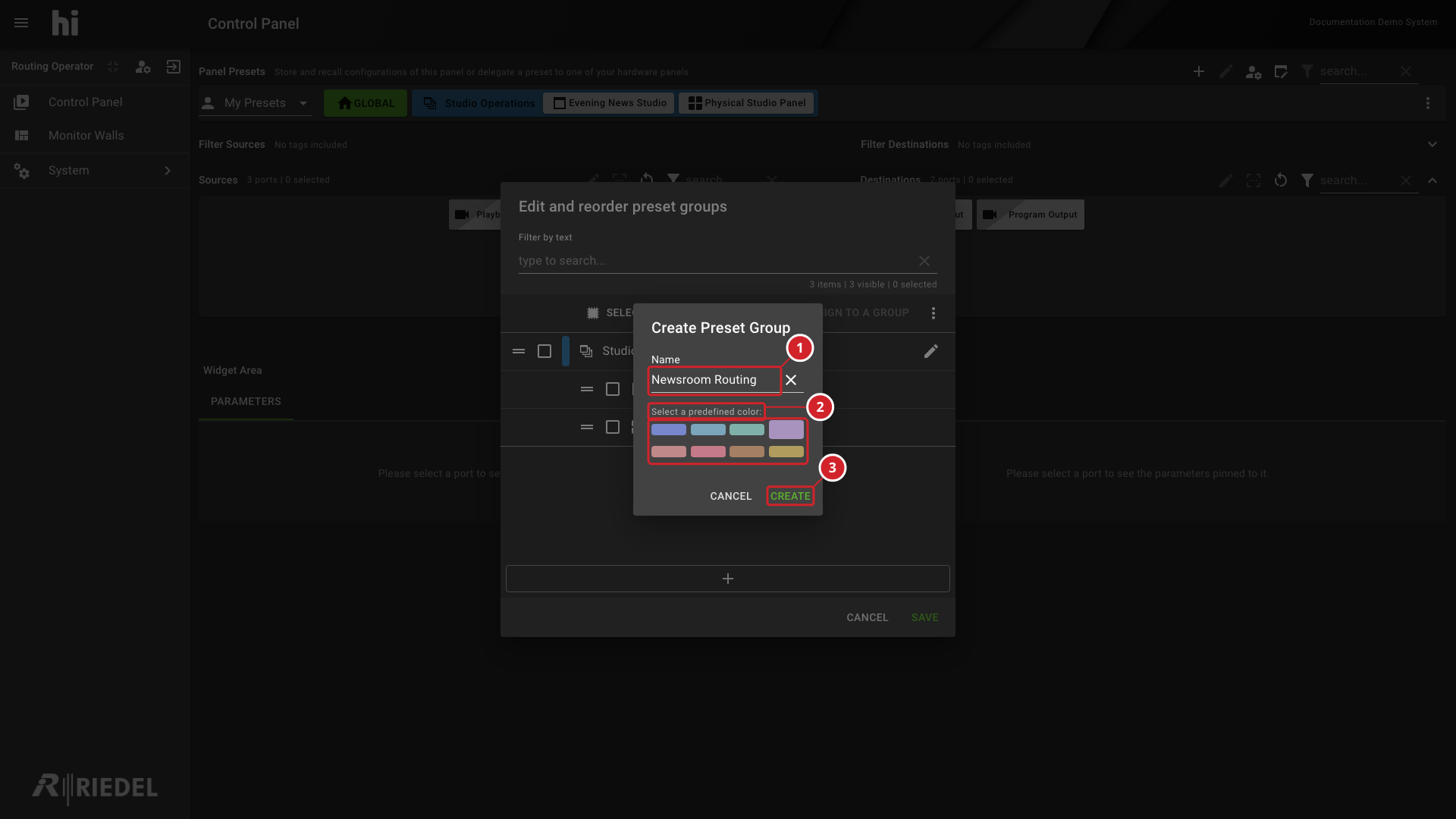
In Create Preset Group, enter a Name, select a color, and select Create.
-
Select the Presets to organize, then select Assign to a Group.
-
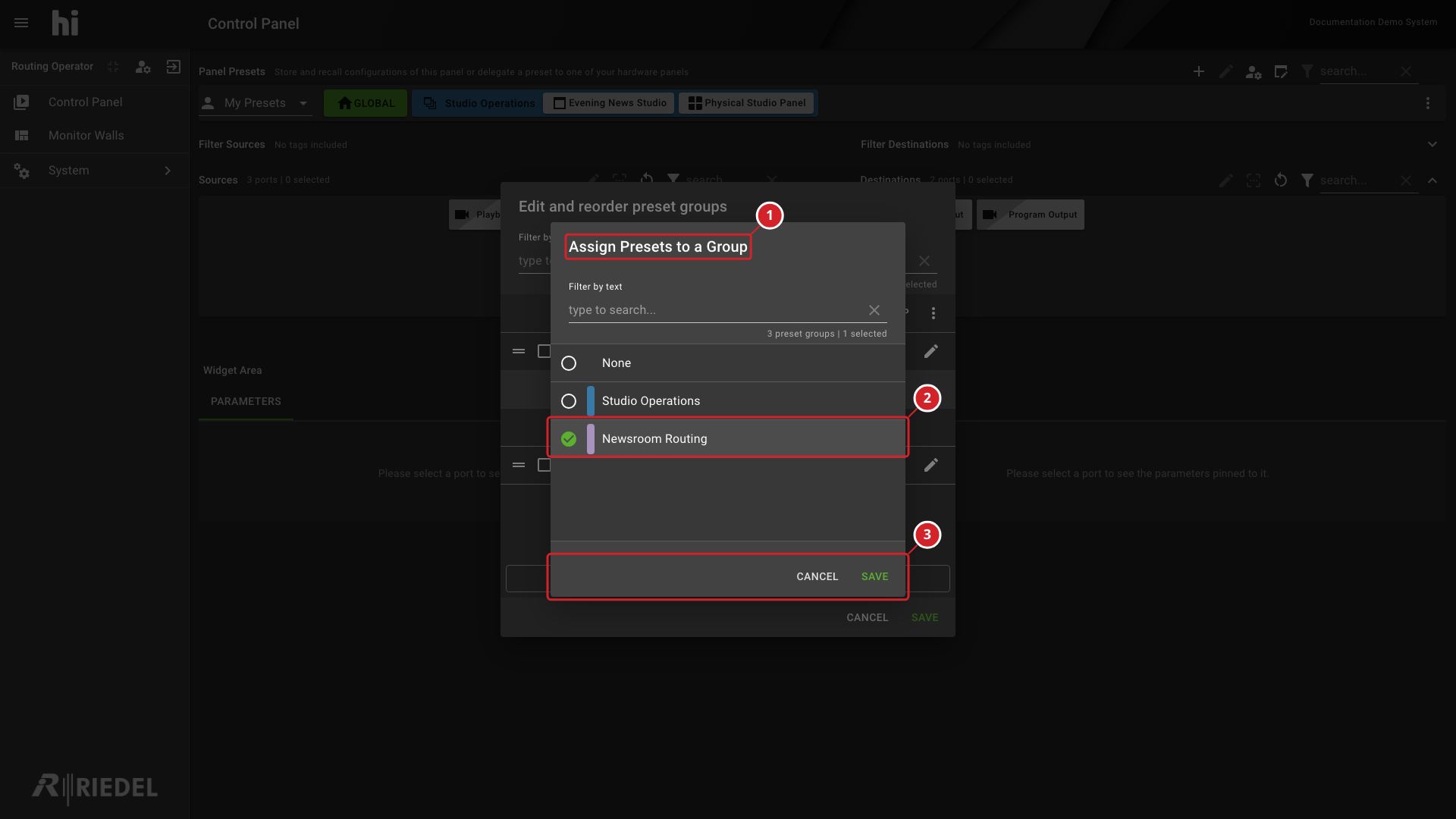
In Assign Presets to a Group, select the group and select Save.
-
Select Save in the group editor.
Preset Group Editor
-
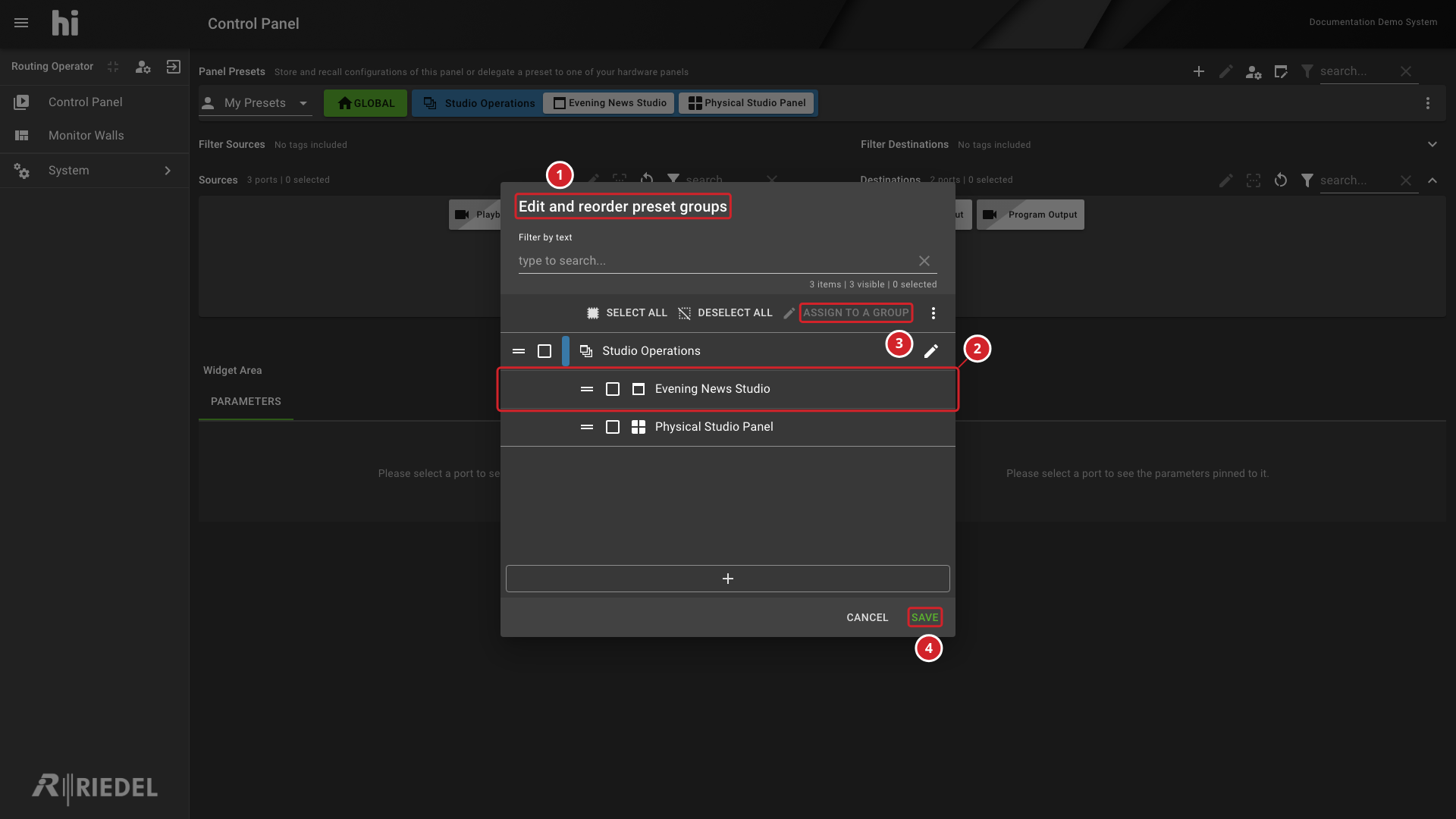
The Edit and reorder preset groups dialog contains the Presets and groups to organize.
-
Select the checkbox for Evening News Studio to include that Preset in the assignment.
-
Assign to a Group becomes available when a Preset is selected.
-
Select Save in the group editor after completing the assignments.
Create the Group
-
The Name field contains Newsroom Routing in this example.
-
Select the group color from the eight predefined swatches.
-
Select Create to add the group to the editor.
Assign Presets to the Group
-
Assign Presets to a Group selects the group for the chosen Presets.
-
Newsroom Routing is selected in this example.
-
Select Save in this dialog to confirm the assignment, or Cancel to close it.
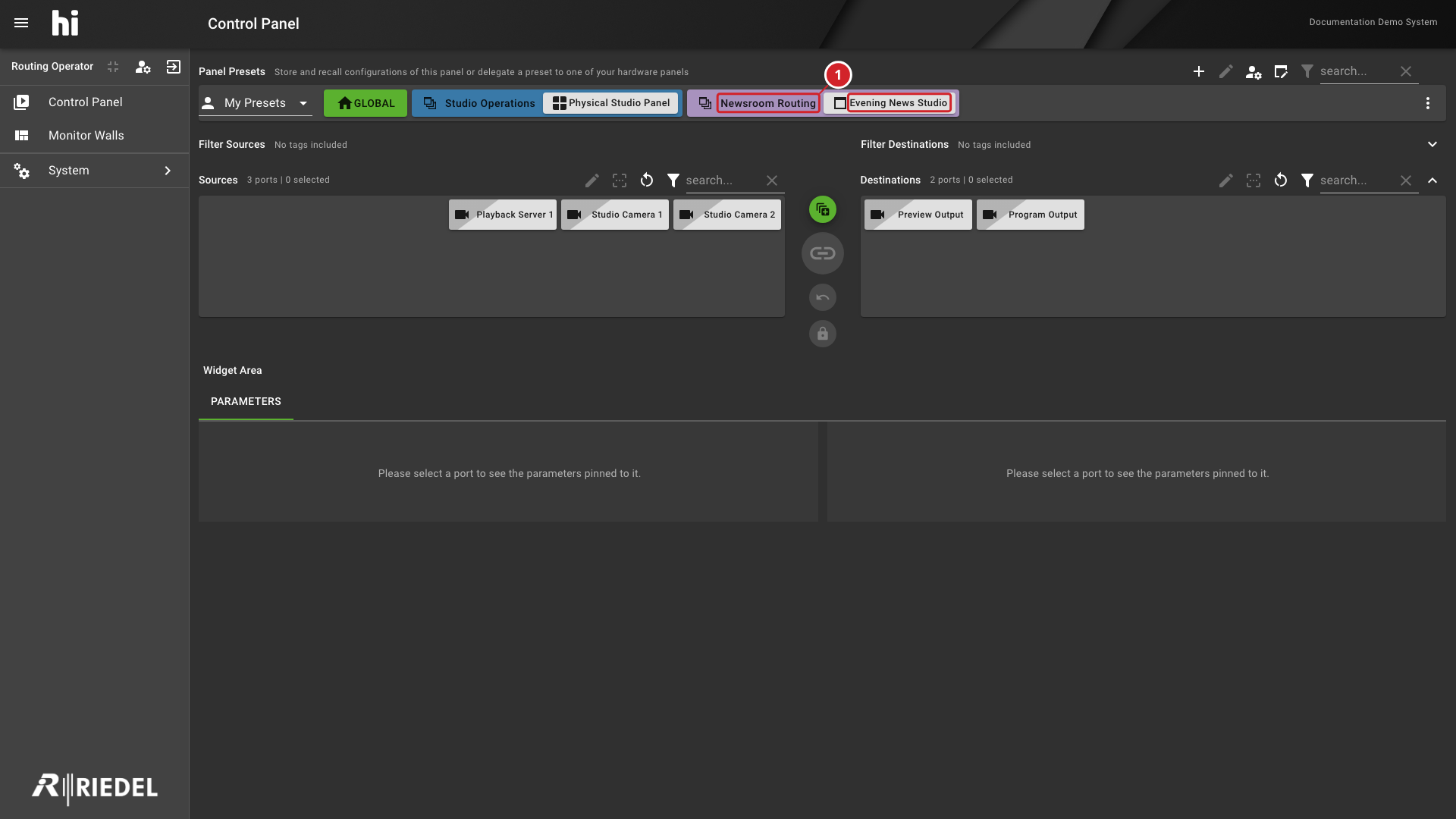
Select a group to expand or collapse it. Each group can have a custom color.
-
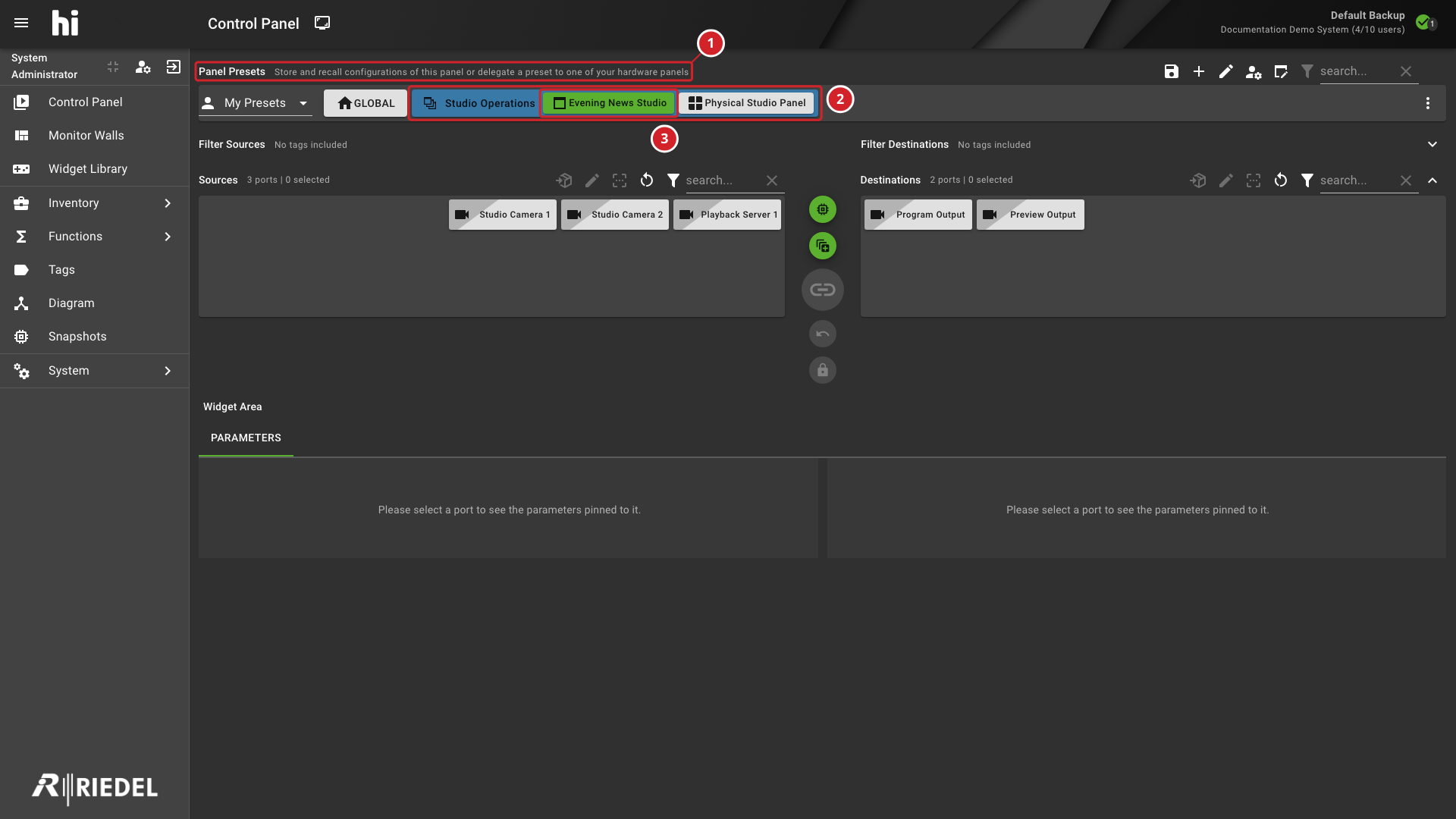
The Panel Presets area stores and recalls panel configurations.
-
Studio Operations is a Preset Group.
-
Evening News Studio is a Preset in that group.
Information
A Preset is editable when you created it or have the Preset admin role. The Control Panel shows other Presets that are delegated to you with a read-only icon. You can activate them and open them, but you cannot change them.
Verify the Result
Expand the group and confirm that it contains the intended Presets.
Expanded Group on the Preset Bar
-
The expanded Newsroom Routing group contains Evening News Studio.
Next Steps
Use Edit, Reorder, and Delete Preset Groups to change an existing group. Return to the Use the Control Panel task list.