
Simplified Control Panel Access
Overview
Understand the restricted routing and Widget interfaces available through simplified access roles.
Simplified access limits the hi web interface to the controls available for the user's assigned role.
Access and Auto-Redirect
Users assigned Simplified Power Widget access are redirected from the start page to the Simplified Power Widget page. Its page title is Widgets. This profile is exclusive; see Access Control: User Roles. hi shows a restricted application bar.
The Simplified Control Panel access role provides a restricted experience. These users see only the Presets that are delegated to them, the main Preset is hidden, the menu is disabled, and Monitor Walls are available when they are tagged for the user. These users are redirected from the start page to the Control Panel.
In the restricted application bar, hi shows the user's display name and login name, an edit-profile button, and a log-out button. The main menu button is not shown.
A user who opens the Simplified Power Widget page without an assigned Widget Group sees the message Something wrong. You have not got Widget Group, or have not got access to see this page. Assign the role and a Widget Group before you give the user this access.
What the Simplified Power Widget Page Displays
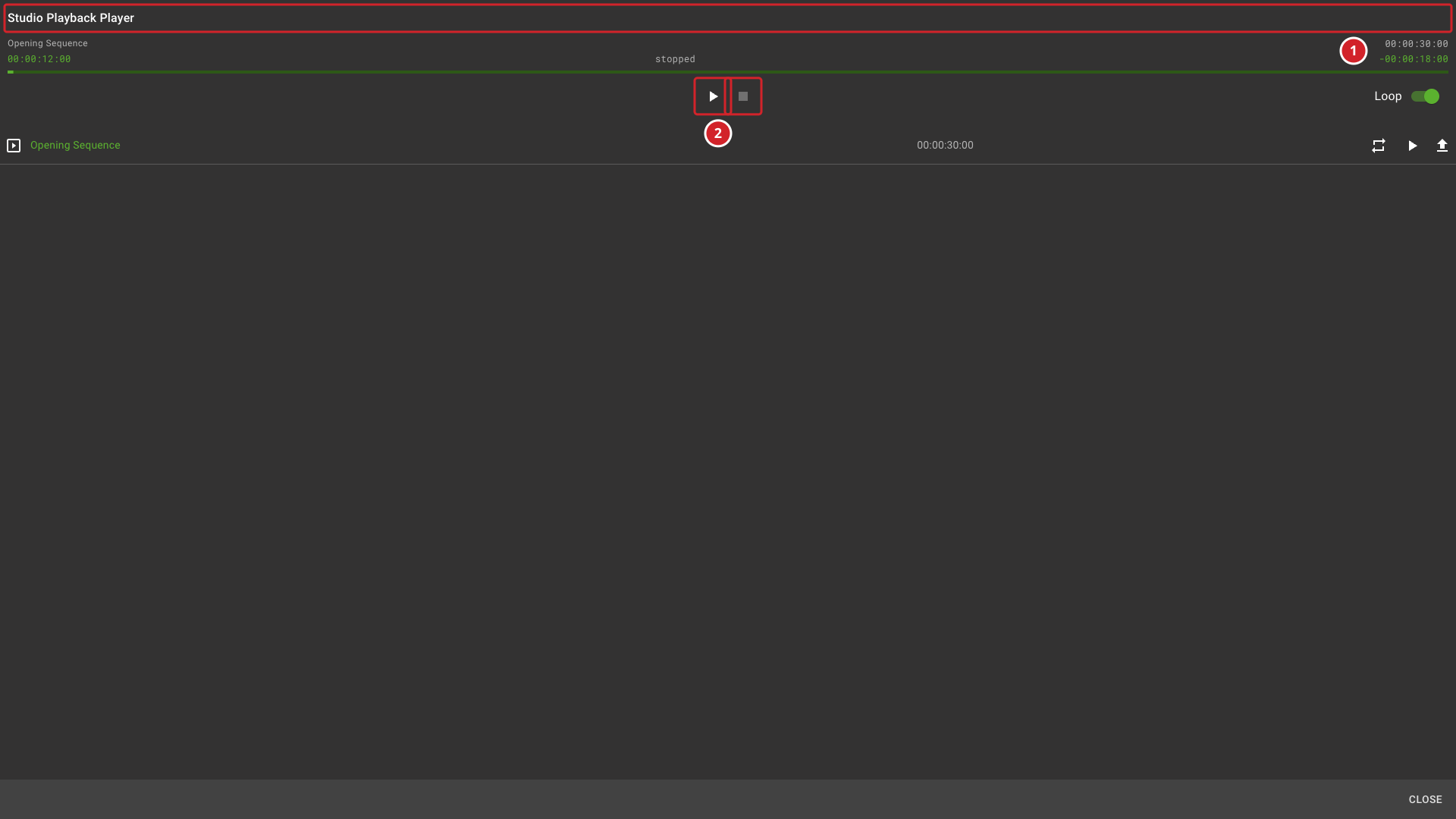
The page uses the first Widget Group assigned to the user. The first Widget in that group opens automatically. Its view fills the screen. The available controls depend on the Widget type. A Video Player Widget provides controls to start and stop playback.
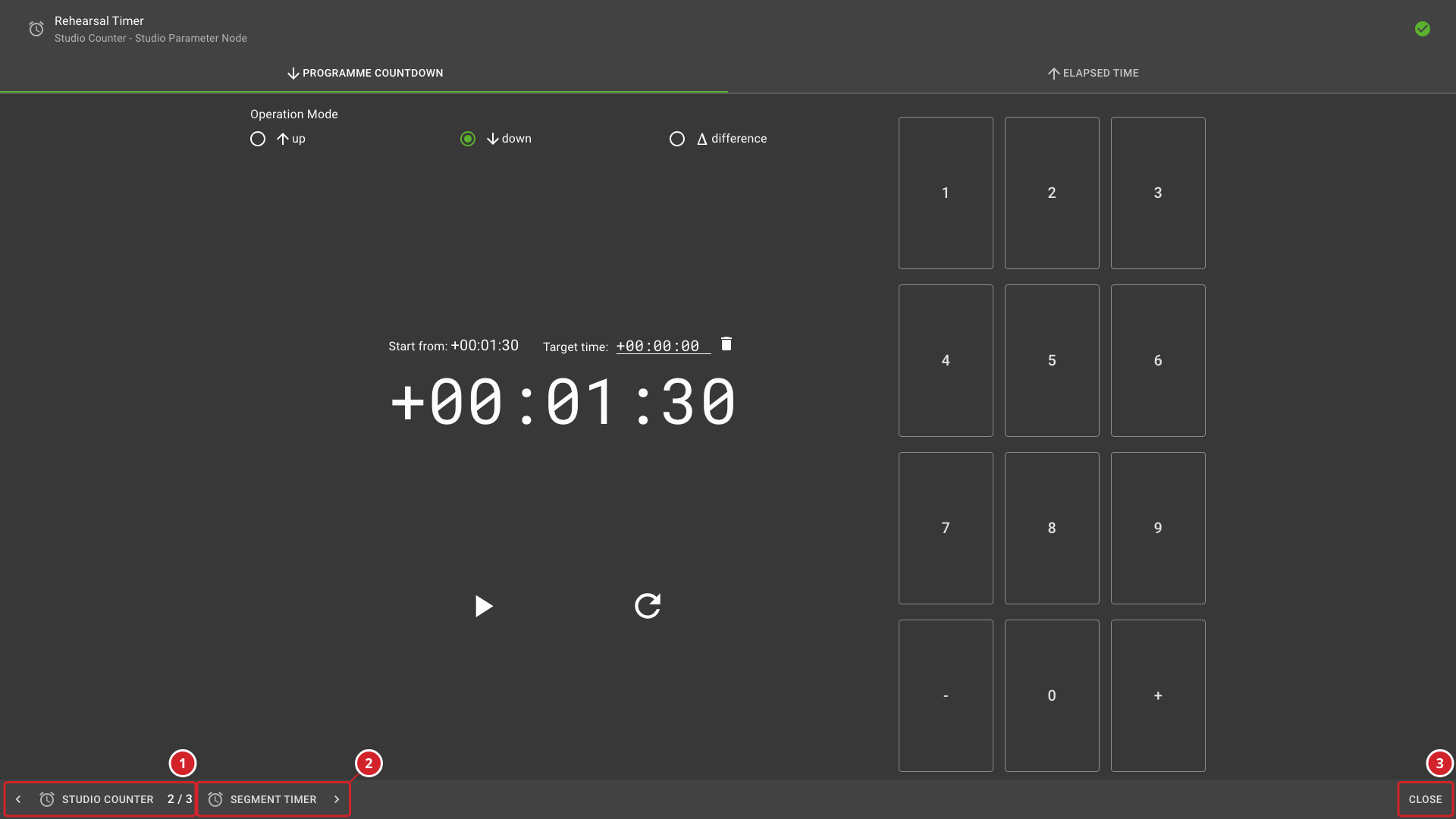
When the group contains further Widgets of a type that supports stepping, the Widget dialog shows buttons with the names of the neighboring Widgets. When both neighbors exist, it also shows a position indicator such as 2 / 5. Select a neighbor button to move to that Widget. Select Close to close the dialog. Users cannot edit the Widget Group from this page.
Assign Widgets to the user with Assign Widgets to Simplified Power Widget Users in the Widget Library, or Assign to Simplified Power Widget User in the Widget Area of the Control Panel.
-
Studio Playback Player is the Video Player Widget opened from the assigned Widget Group.
-
Playback controls start and stop the player.
-
The left neighbor button opens the previous Widget. The position indicator shows the open Widget's place in the group.
-
The right neighbor button opens the next Widget.
-
Close closes the Widget dialog.
Operational Implications
Use Simplified Power Widget access in these situations:
-
Operators need to adjust device parameters, such as volume, gain, and camera settings, through Widgets.
-
Operators do not need access to routing, Preset management, or system administration.
-
Operators need a simplified interface with minimal navigation.
Related Tasks and Reference
-
Use Manage Users to assign the restricted role, and assign Widgets from the Widget Library or the Widget Area.
-
Use the Control Panel tasks for the full routing interface.