
Undo a Routing Change
Overview
Restore the previous Source connection for a Destination after a Take.
Prerequisites
-
Use an account with Control Panel access and Tag access to the required Sources and Destinations.
-
Open Control Panel and select the required Preset.
-
The selected Destination must have a previous connection recorded. Undo is disabled when no previous connection is available.
Undo the Connection
Caution
Undo changes the live route. Confirm the affected Destinations and their recorded previous Sources before selecting Undo. The most recent connection may have been made by another user, a Hardware Panel, a Snapshot, or a Rule.
-
Select the Destination whose previous connection must be restored.
-
Select Undo on the connection toolbar.
Scope
-
Undo operates per Destination Port. Each Destination independently tracks its previous Source connection.
-
The undo history stores one level of previous connection per Destination. Selecting Undo restores the Source that was connected before the most recent Crosspoint change on that Destination, whatever caused the change.
-
Undo is available in both Normal mode and Multi-Select (Gang Take) mode. In Gang Take mode, undo applies to all selected Destinations that have a previous connection recorded.
-
The Undo button is disabled when there is no previous connection to restore (the Destination has no recorded earlier connection, or the previous Source is unknown).
Supported Operations
Undo applies to Crosspoint changes on the Destination, including changes made by another user, a Hardware Panel, a Snapshot, or a Rule. It does not undo lock/unlock operations, Preset changes, or parameter modifications.
-
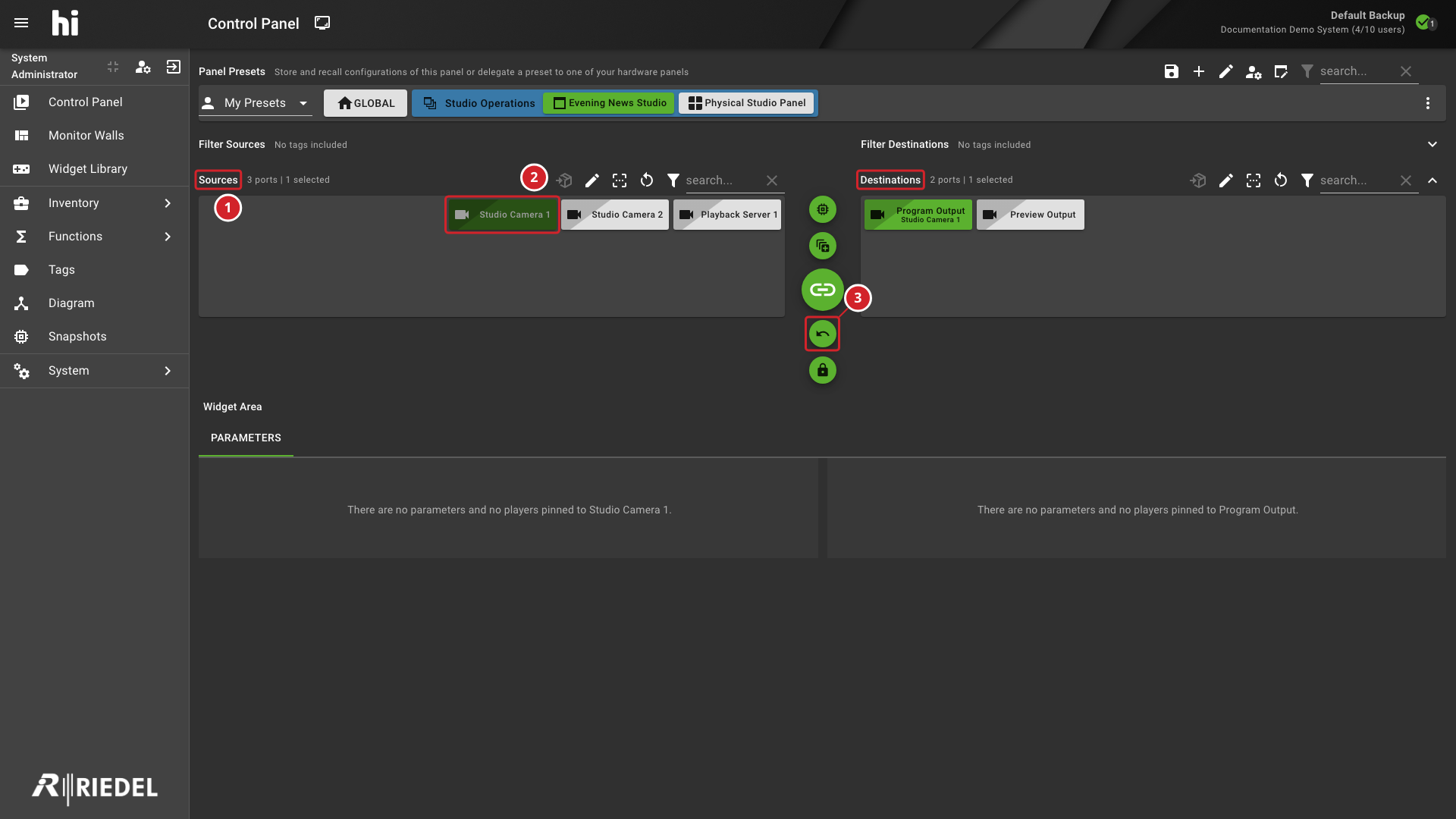
The Source and Destination areas show the routing context.
-
Studio Camera 1 is the selected Source.
-
Use Undo to restore the Destination’s previous Source when an undo operation is available.
Verify the Result
Confirm that the Destination shows its previous Source.
Next Steps
Return to the Use the Control Panel task list.