
Edit a Static Preset
Overview
Use the Static Preset Editor to assign Source and Destination Ports to fixed Hardware Panel button positions. Static Presets use explicit assignments instead of dynamic Tag filtering.
Prerequisites
-
Use an account with the Preset admin role or ownership of the Preset.
-
Assign the target Hardware Panel layout or SKU to the Preset.
-
Confirm the required Source and Destination Ports in the Topology.
Information
Static Presets are not available for hiPush32-D, hiPush32-S, or RIEDEL 1200 Series SmartPanel layouts.
Open the Editor
-
Open the Control Panel.
-
Select the existing Static Preset you want to edit.
-
Select Customize current preset. The editor opens in a separate browser window. The control is disabled when you cannot modify the Static Preset.
-
Confirm that the editor opens in a separate browser window.
Assign Ports
-
Select the layout tab that matches the target Hardware Panel SKU.
-
Open the Source or Destination Port tree.
-
Drag a Port from the tree to the required grid position.
-
Use the Port Picker when filtering or search is required.
-
Repeat the assignment for each required button position.
-
Select Save changes.
Caution
Changes are not saved automatically. Save the Preset before closing the editor window.
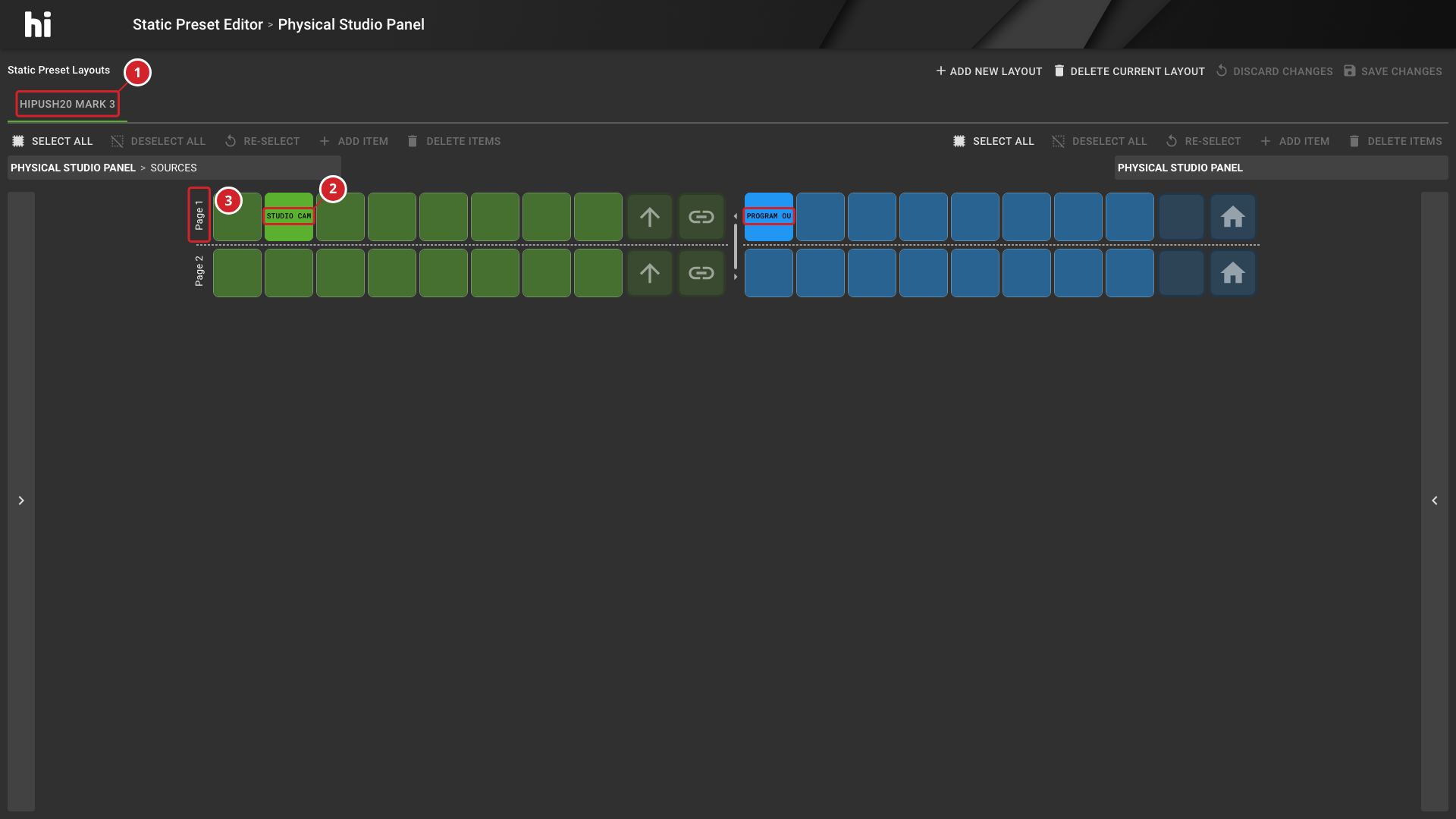
-
The selected layout is hiPush20 Mark 3.
-
The layout has Source and Destination Ports assigned to fixed button positions.
-
Page 1 is the selected layout page.
Verify the Result
Confirm that the grid shows each expected Port in the required button position. Verify the updated layout on every Hardware Panel carrying the Preset.
Next Steps
Verify the Static Preset on the physical Hardware Panel. The Hardware Panel Simulator is not available for Static Presets.